Preserve perfect meeting memory with AI Meeting Notes
Meet Notion’s AI Meeting Notes, your intelligent meeting assistant. It transcribes your meetings and turns it into organized meeting summaries right in your workspace.
Hov! Det ser ud til, at din reklameblokker forhindrer videoen i at blive afspillet.
Se den på YouTube i stedet
We've all been there— a meeting ends and you stare at your scribbled notes, trying to piece together what just happened. For those of us bouncing between back-to-back meetings, taking good notes feels like a full-time job. Hastily written notes often end up lost in the shuffle, missing the key details we were sure we'd remember. Effective meetings should be a catalyst for progress, yet the very act of trying to document them well often becomes a productivity bottleneck.
Meet Notion's AI Meeting Notes— your everyday partner to improve meeting outcomes. Built right into your workspace, it handles the note-taking so you can truly be present in your conversations.
In this guide, we'll help you:
Get started with AI Meeting Notes
Get your meetings flowing better with simple tips and tricks
Let the AI handle post-meeting tasks while you focus on what really matters

Prøv AI-mødenotater gratis
Deltag i møder uden at gå glip af noget. Notions AI-mødenotater optager, opsummerer og organiserer dine noter, så du kan forblive til stede og gå fra mødet med klarhed.
AI Meeting Notes is a block you can add to any Notion page, making them easy to access whenever and wherever you need them. Since they're built right into Notion, you save yourself the hassle of juggling separate transcription tools that don't connect with the rest of your work.
To get started, simply type /meet or click the Meet pill at the bottom of a new Notion page. See our reference article for more details.
We recommend adding AI Meeting Notes to your database templates to automatically start taking notes in your recurring meetings like 1:1s, stand-ups, and team syncs. Learn more here.

Deleting meeting note transcripts
AI Meeting Notes is quick to set up and works seamlessly with how and where you already work. When you connect your Notion calendar to your workspace, all your meetings appear right on your Notion homepage—making it easy to access meetings, details, and notes without ever leaving Notion.
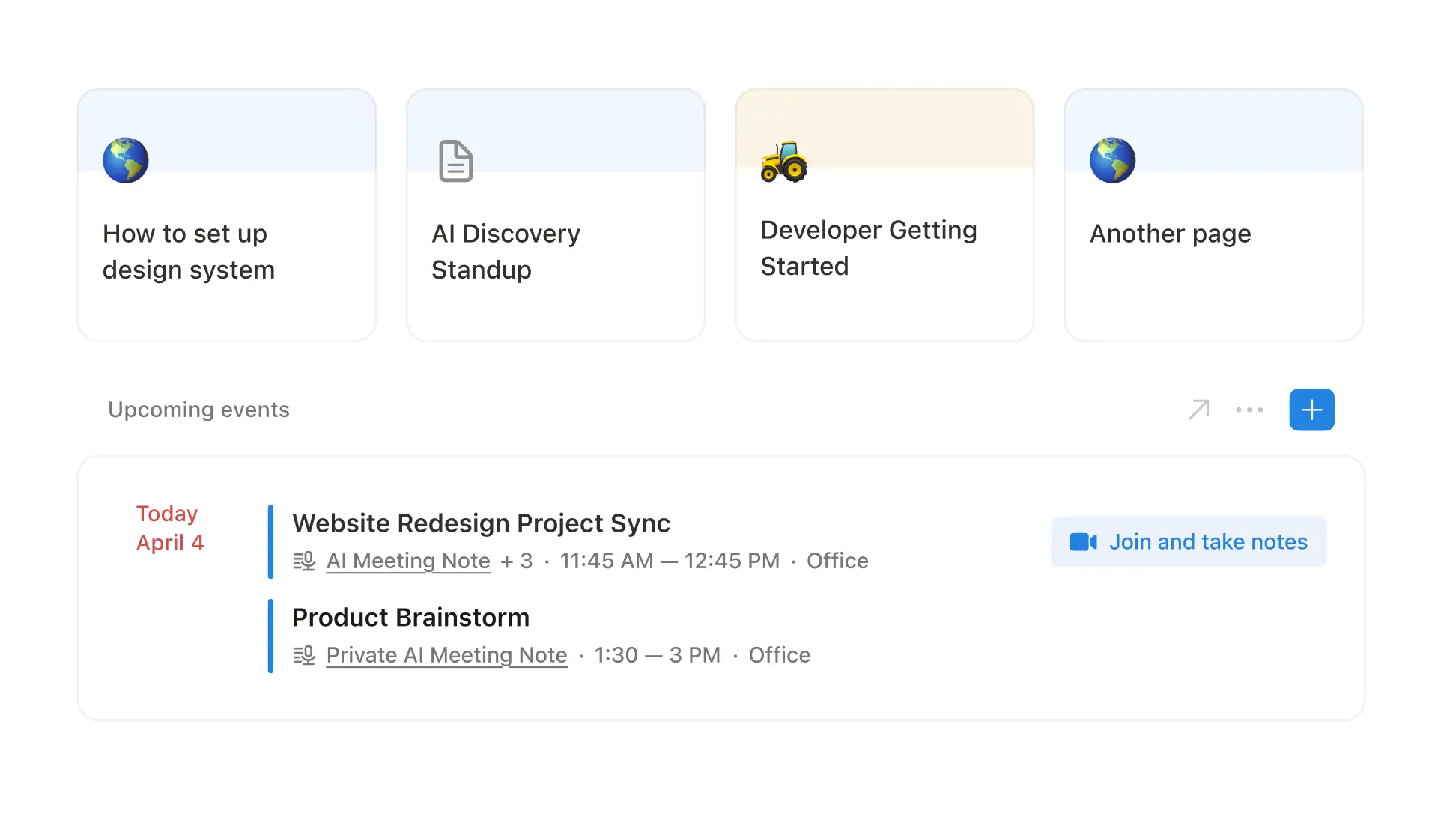
Here’s how you can get set up:
Access your meeting notes from anywhere— Whether you’re rushing to your next call or catching up between meetings, AI Meeting Notes is right there on your Notion homepage— alongside your daily schedule. For example, if you forgot to attach AI Meeting Notes to your event, you can still launch it directly from the menu bar at the top of your screen during a Zoom call.
Choose where your notes live— In your Notion calendar settings, set a default location for new meeting notes, like a dedicated meetings database. That way, every conversation is automatically saved in one organized place, ready when you need it.
Set it and forget it with auto-share and auto-add
Add AI Meeting Notes to any event— When creating a new calendar event, just use the AI Meeting Notes and Docs section to attach a notes page. For existing pages, click the microphone icon to turn them into meeting notes, and AI will instantly add the note-taking block to the top.
Good meeting documentation reduces confusion, keeps everyone accountable, and ensures important decisions don't get lost in the shuffle. Here are five ways to keep your meetings productive and your notes actionable:
Get everyone's okay first
Set your agenda beforehand—Share a clear agenda beforehand in the notes tab so everyone comes prepared. This helps keep discussions focused and ensures you cover key topics in the time available.
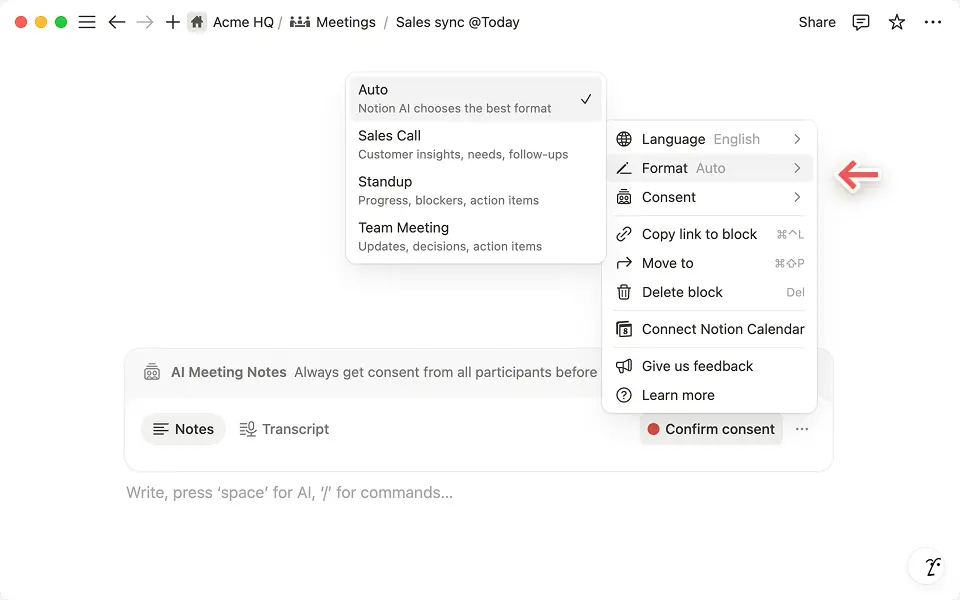
Pick your meeting style— Click the three dots menu to choose from four formats: Auto, Sales, Stand-up, or Team Meeting. Each one organizes your notes differently to match your meeting type, and you can customize them for your conversation.
Capture notes collaboratively and in real time—Since Notion AI looks at both the notes and transcription when creating summaries, encourage everyone to add their thoughts and highlights in the Notes tab. More input means better summaries!
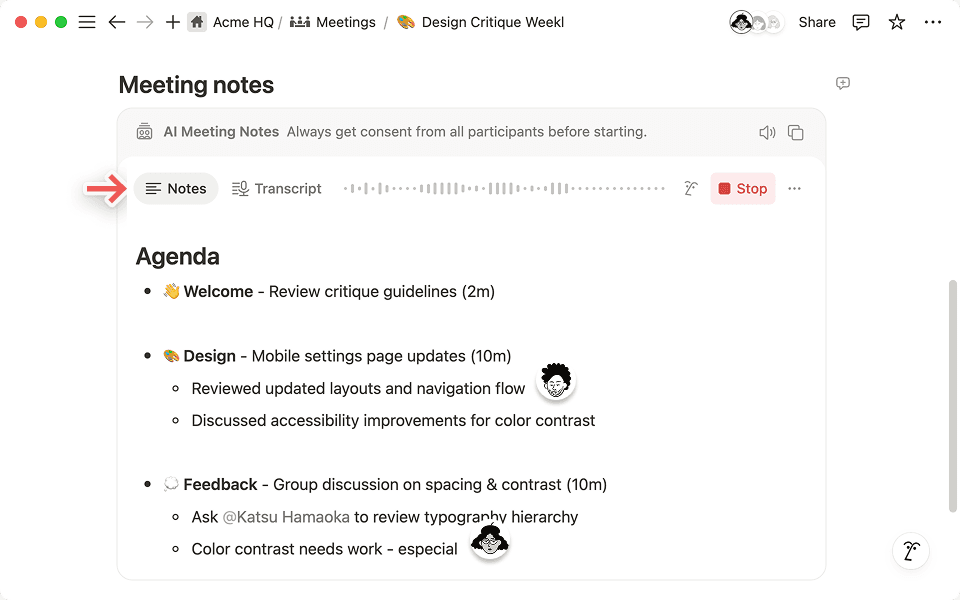
Tag teammates in action items—When you jot things down in the Notes tab or share thoughts during the meeting, use
@mentions to tag teammates—this helps Notion AI turn those mentions into clear next steps everyone can act on.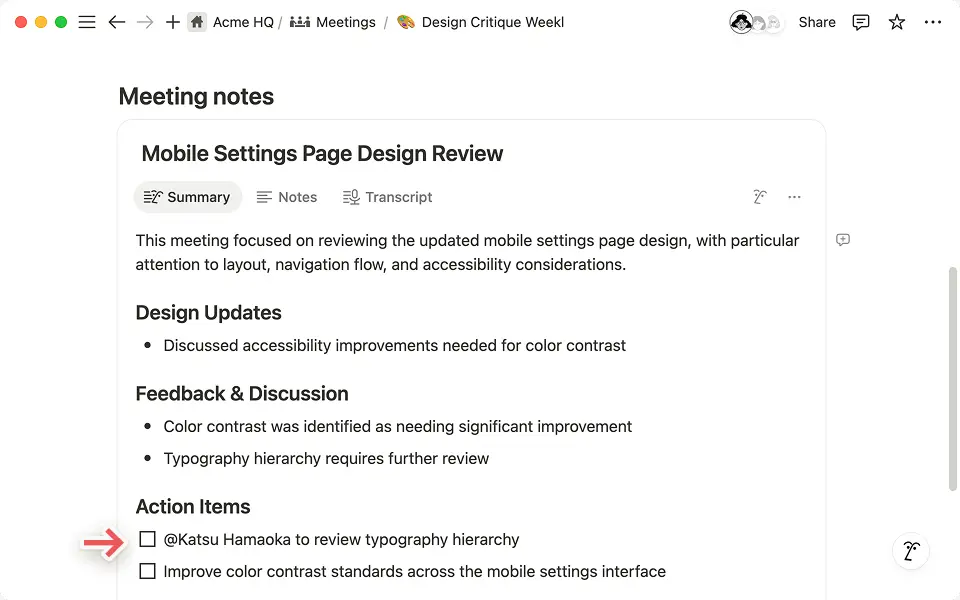 Notion AI automatically tags the right people in the summary tab when you tag them in your notes.
Save time by converting action items to tasks
Set up a meeting notes database—Keep all your meeting notes in one place by creating a dedicated database. This makes it super easy to find past notes and helps everyone build better documentation habits, especially when AI Meeting Notes is already part of your templates. Check out our course on creating a meeting notes database.
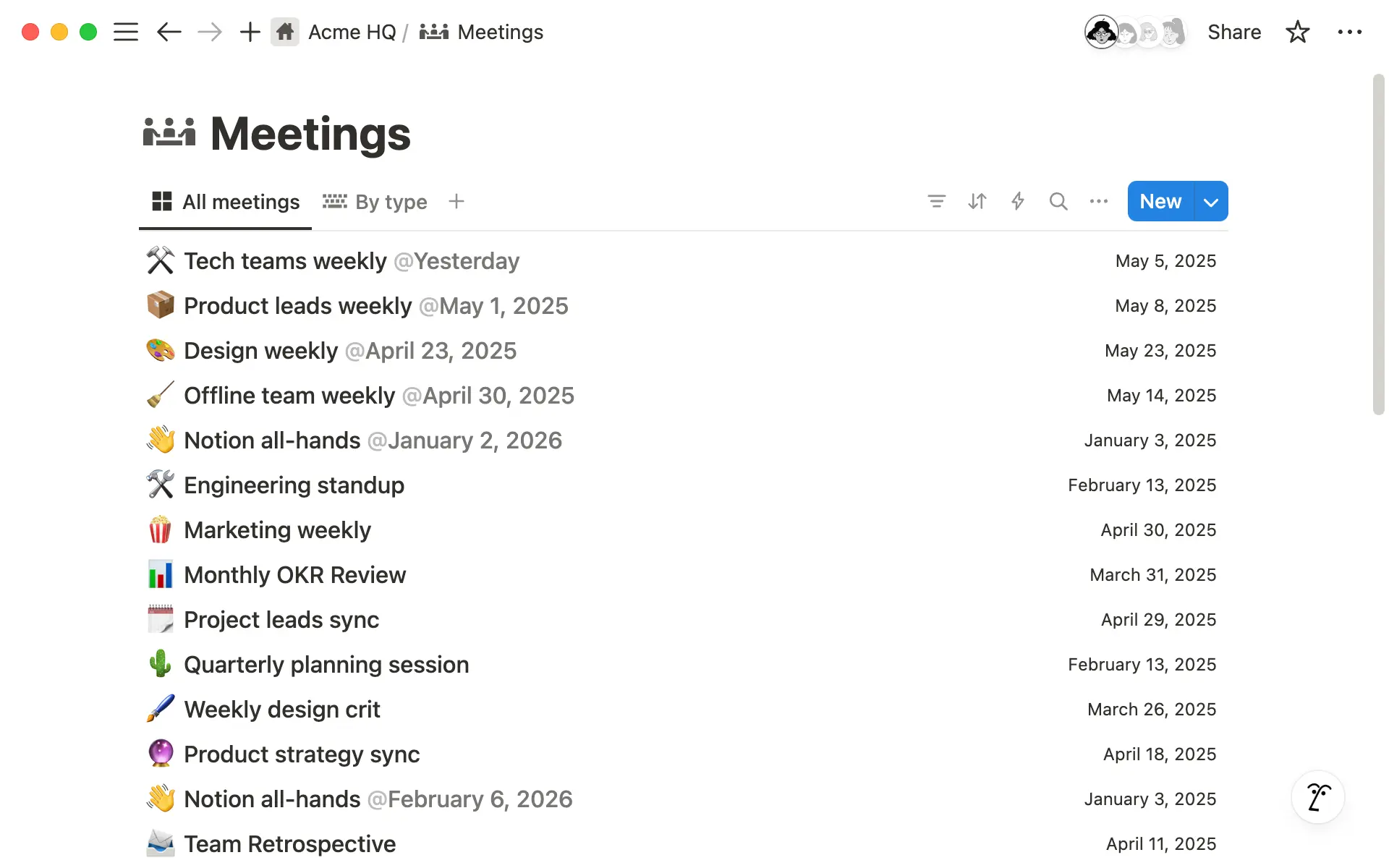
Keeping your meeting notes in a Notion database lets you easily connect them to related projects, tasks, or people using Relation and Rollup properties. It’s a simple way to make sure every discussion stays anchored in the right context. With this setup, teams can:
Connect notes to projects and tasks—Just like linking your marketing team's weekly feedback to project pages. This helps you keep track of all your campaign updates and decisions in one place, making it easy to look back at what happened when.
Tag teammates in action items and assign ownership right from the meeting note— When you're discussing product launches, you can connect all your decisions to your project pages and spec docs. This makes it super easy to look back at important discussions when you need them later during development.
Once the meeting wraps up, your time should be spent moving work forward, not struggling to decode messy notes. AI Meeting Notes helps you stay focused on what matters— here’s how:
Get clear summaries after the meeting ends— AI will turn your notes and the transcription into organized meeting summaries after the meeting ends.
Set up automations to share your meeting notes in Slack
Let AI help with meetings follow-ups— Get Notion AI help to draft follow up emails, project status updates, anything you need. For example, if you're a sales lead, get Notion AI to create a quick deal status update for leadership based on your client meeting notes.
Get quick answers from meeting history— Ask Notion AI questions about past meetings right from your workspace, like "What was decided about the new product launch timeline?" or "What was the final decision on the marketing budget?". Since your notes are connected, you'll get clear answers with links back to the original discussions.
With AI Meeting Notes, you let Notion AI handle the documentation while you lead the discussion, collaborate with your team, and take action on what matters most.

Jumpstart your meetings with these templates
Start med en skabelon
Gennemse over 10.000 skabeloner i vores skabelongalleri
Er der noget, vi har glemt?