Notion 3.7: Agent skills for your whole team
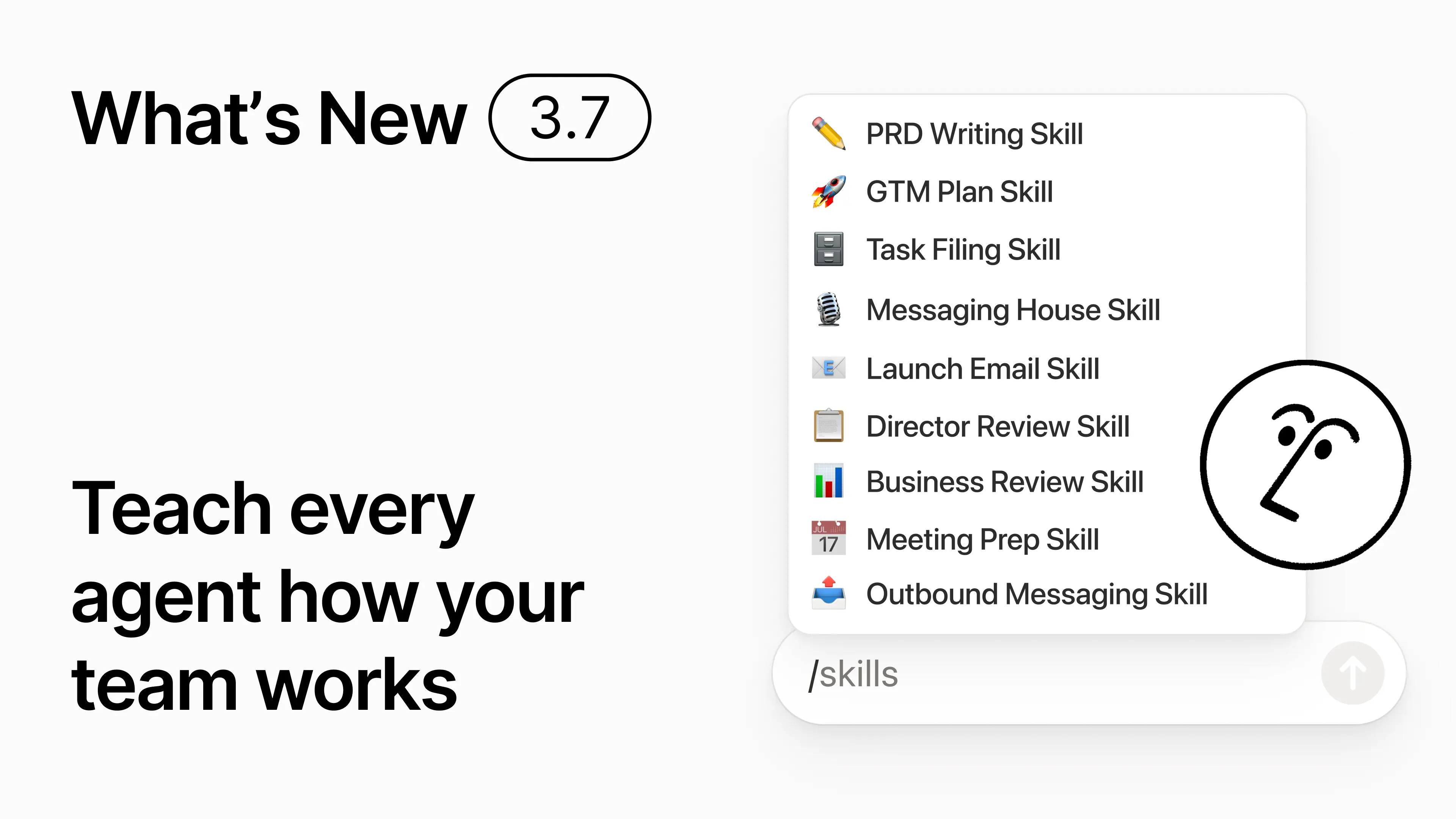
You know how some people are really good at prompting AI? Or they’ve figured out the best way to handle repetitive work? Now they can turn that know-how into a skill and level up the whole team.
Skills are reusable instructions that teach AI how your team works. Like generating a monthly business review in your team’s format. Or critiquing your doc in the same way your boss would. They’re like team shortcuts for getting repetitive tasks done. Create a skill →
Every AI skill your team needs, in one library
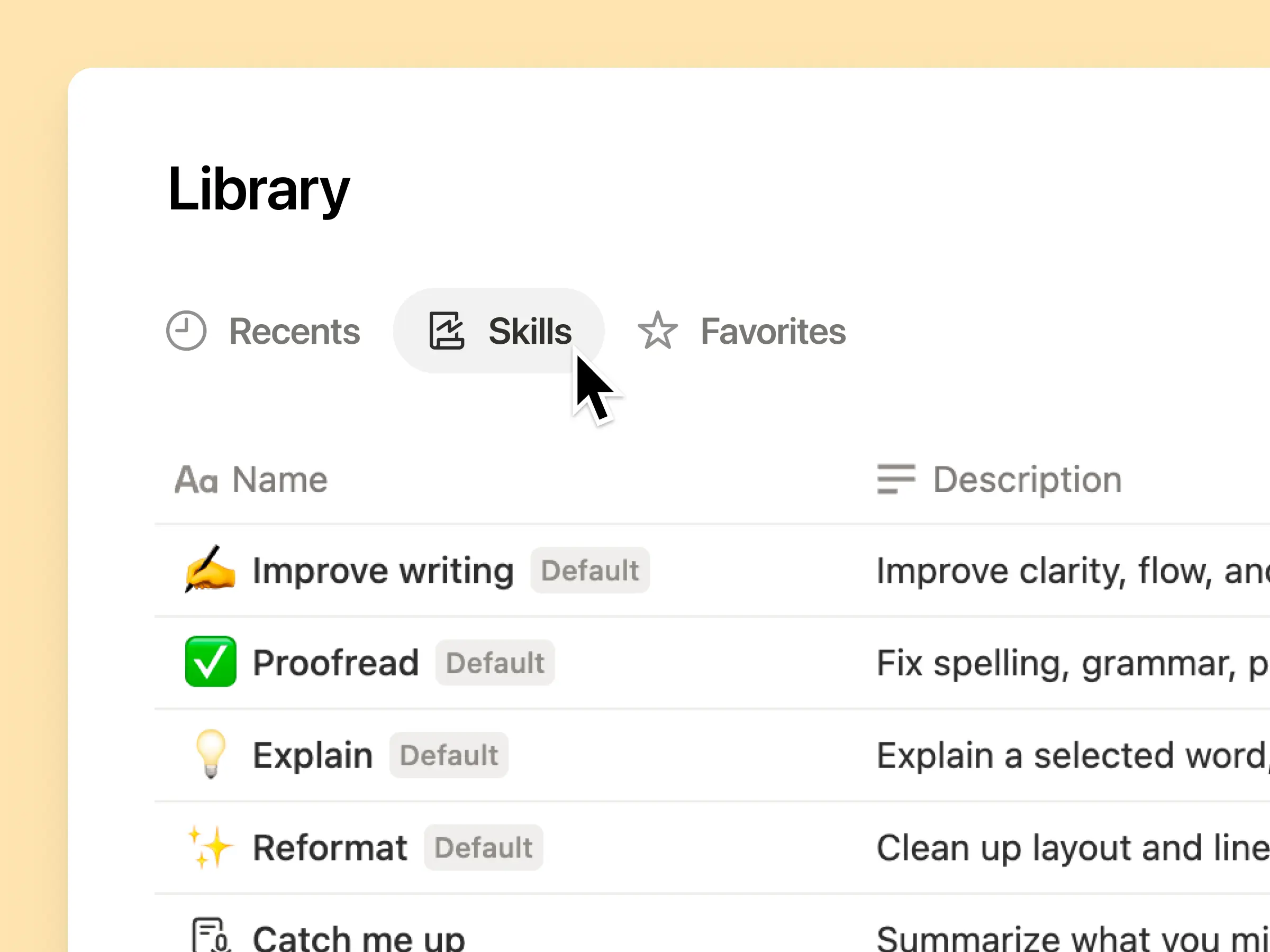
Great prompts tend to live in one person’s head or otherwise disappear into standalone docs and chats. The skills library gives your workspace one hub for all shared skills. Browse the skills library →
Put related skills in a Notion database, then share one skill or the whole database. Each team gets one easy place to find its go-to skills, and everyone stays on the latest version. Learn more →
Write it once, and AI runs it your way
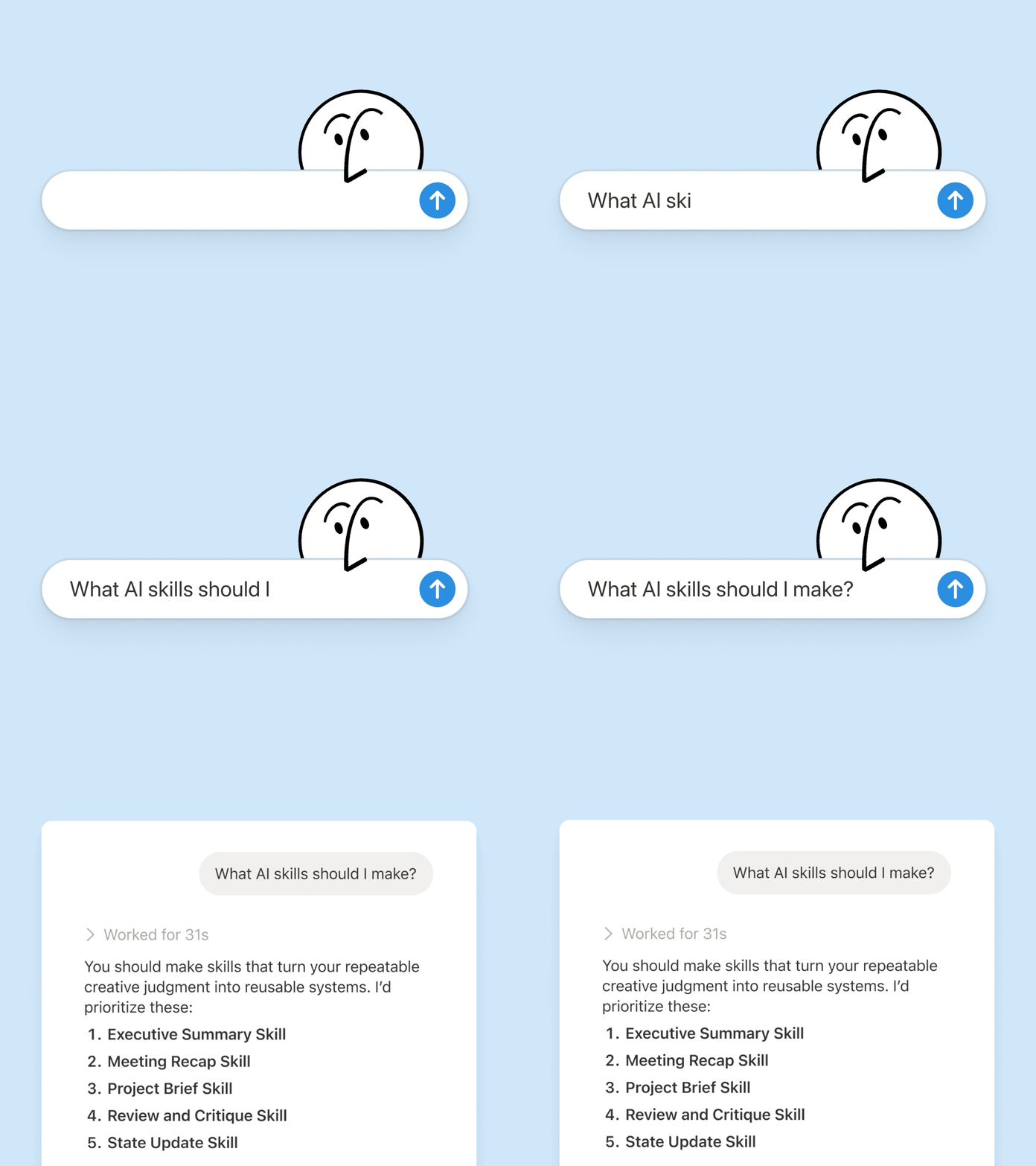
Chat with Notion Agent to create a skill from scratch:
Review this feature proposal using our product, design, and engineering standards.
Create a new-hire setup checklist using our device and app policies.
Draft this job description using our leveling framework and approved language.
Not sure where to start? Notion can also suggest skills based on the work you already do. What skills do I need? →
Run a skill the moment you need it
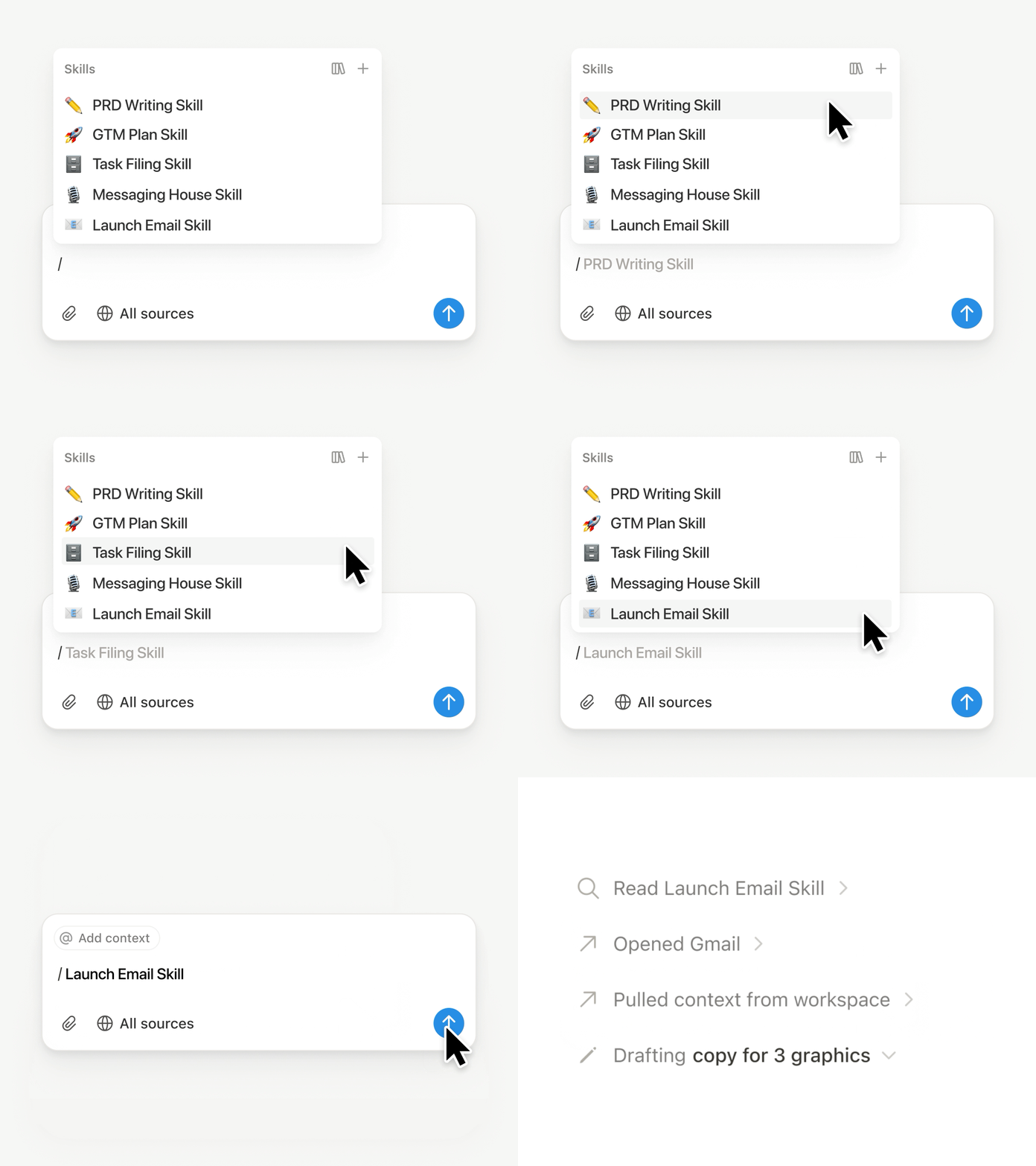
Type / in a Notion Agent chat and choose the skill you want to use. Add any other context, then hit Enter.
Run an Exec-ready skill to turn a draft into a concise executive brief with the takeaway, decisions, risks, and asks. Or turn raw notes into a PRD. You can also set skills to run automatically. Learn more →
Take your team’s skills to Claude Code, Codex, Cursor, and more
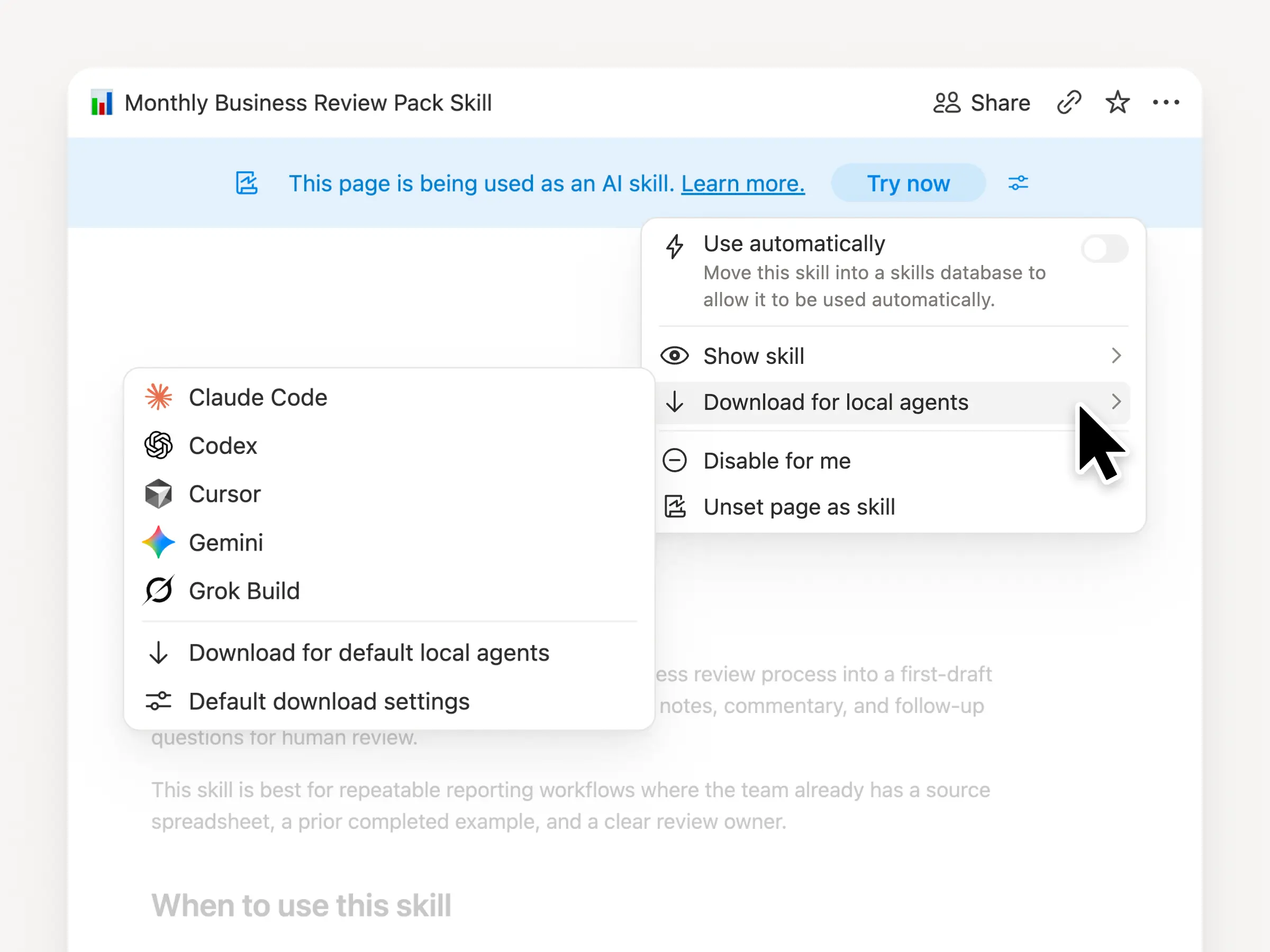
Take your skills with you, no matter what agent you use. Create and update the skill in Notion, then download it to Claude Code, Codex, Cursor, Gemini, or Grok.
Notion writes the skill as a SKILL.md file, along with approved supporting files. When the skill changes in Notion, it gets marked with a badge so you know to grab the latest version. Your team maintains the instructions in one place and your local agents can follow the same process. Learn more →
Ask your agent to connect GitHub, Amplitude, and more
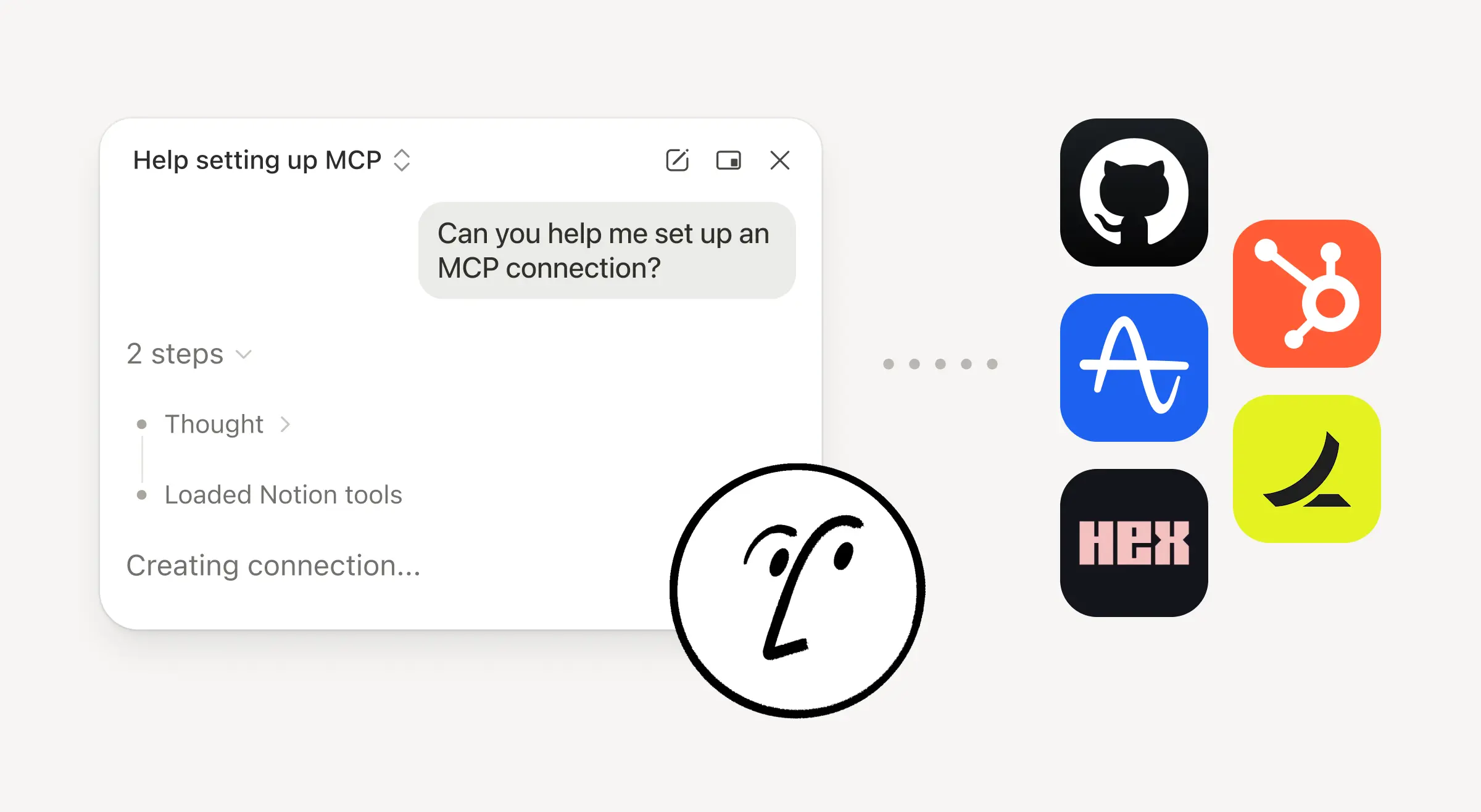
Bring more of your work into Notion Agent. Just ask it to connect a tool, and it walks you through the setup. You can now connect GitHub, Amplitude, and other tools with the Custom MCP connection so you can grab context, check performance, or take action in the tools your team already uses. Connect to GitHub →
Confirmations keep you in control, so nothing changes in a connected tool until you approve it. Available in beta on Business and Enterprise plans. Learn more →
On the go? Use the Notion Agents iOS app
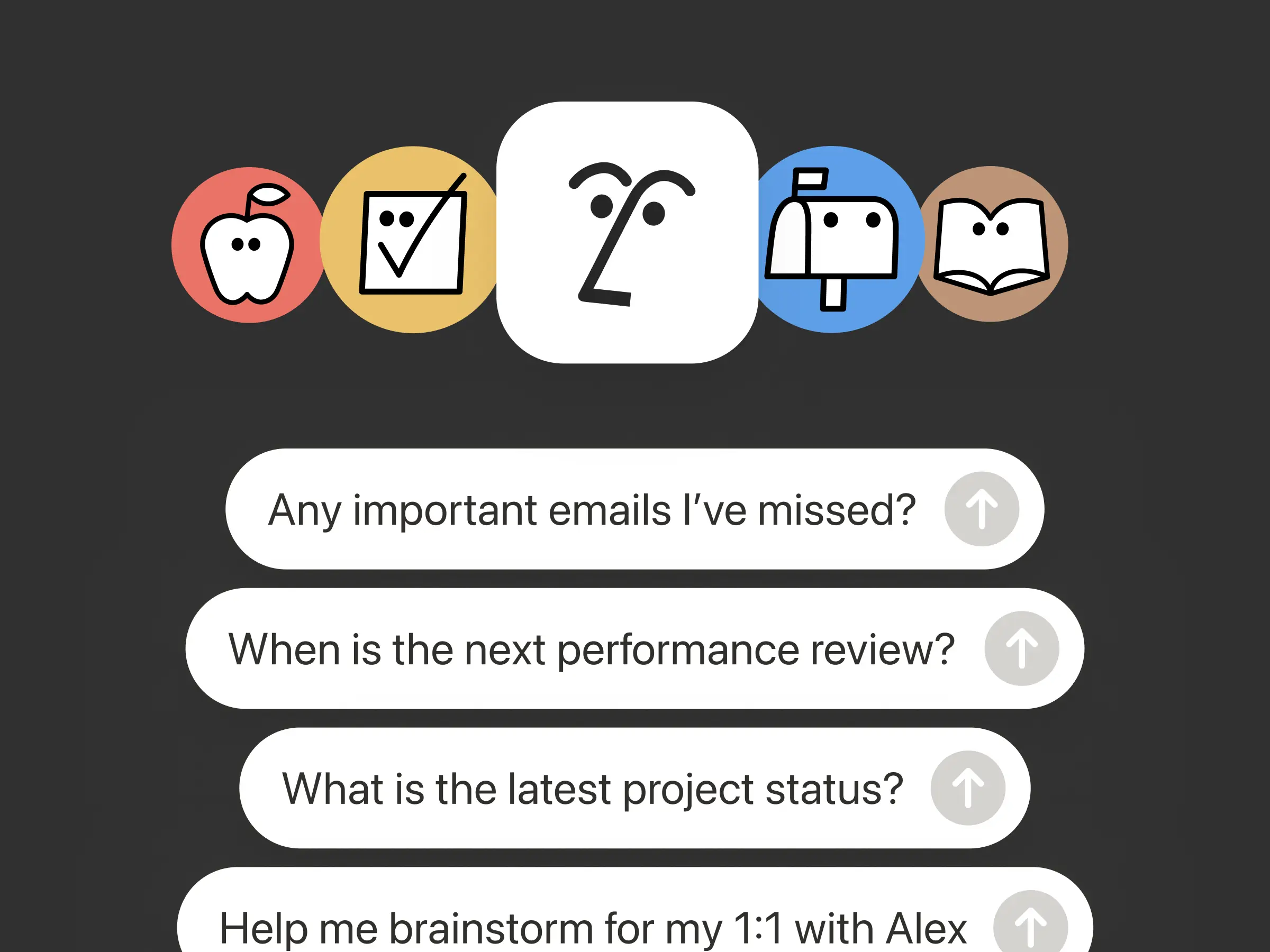
Your best ideas won’t wait until you’re back at your desk. The Notion Agents iOS app puts 1,000 agents in your pocket. Capture ideas and voice and photos, prep for a meeting, or spin up a doc when you’re on the move. Give an agent a task and it gets it done before you’re back at your laptop.
Have your Custom Agent call sub-agents
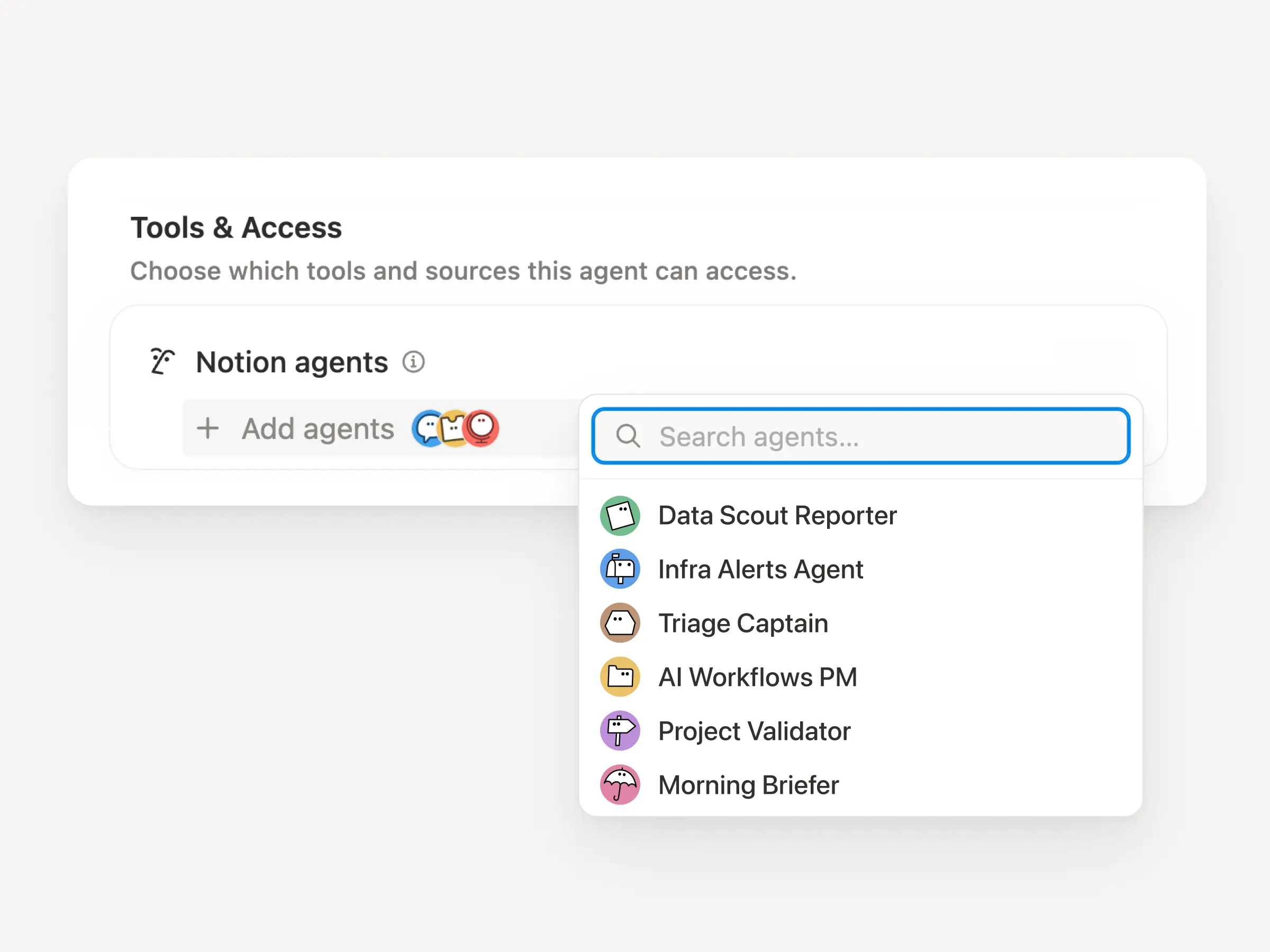
Big workflows are rarely one job. Now a Custom Agent can call other Custom Agents as sub-agents, each with its own instructions, context, access, and model. Learn more →
A Mobile App PM agent can send bug reports to a triage agent and metrics questions to a reporting agent, then bring the answers back into one Slack update. The primary agent decides when to delegate and uses each response to finish the original work. Remote runs its IT help desk on five agents this way and saves $500k a year.
Custom Agents can do the post-meeting work for you
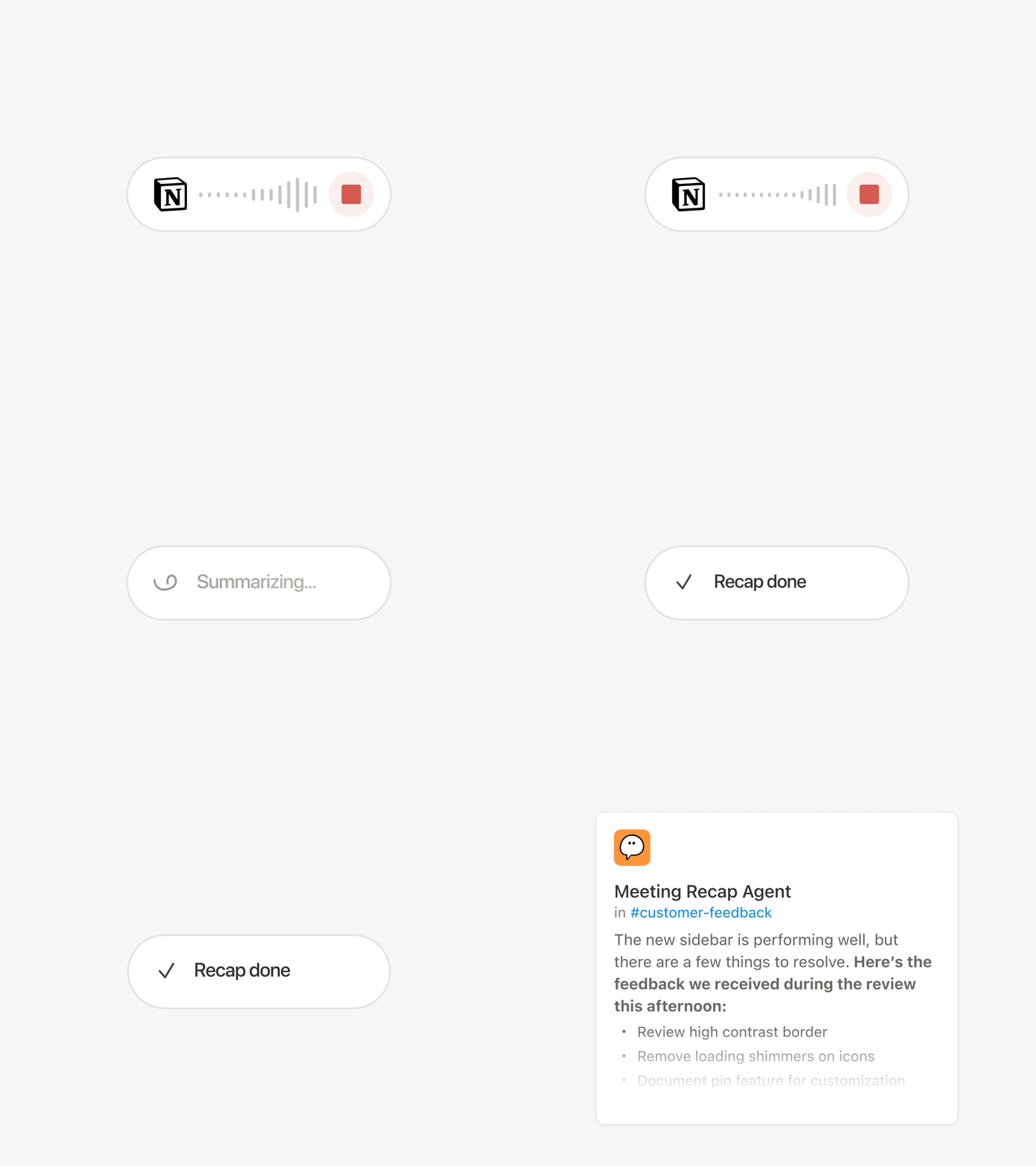
Every call ends with the same chores: Write the recap, file the action items, ping the people who weren’t there. Now Custom Agents can handle post-meeting work automatically.
Choose which meetings matter, then let a Custom Agent pick up the work as soon as each summary is ready. It gets the transcript and summary, so it can write the status update, file the action items, or send customer feedback to the right database. Available on Business and Enterprise plans. Learn more →
Browse every model, and see which is best for the job
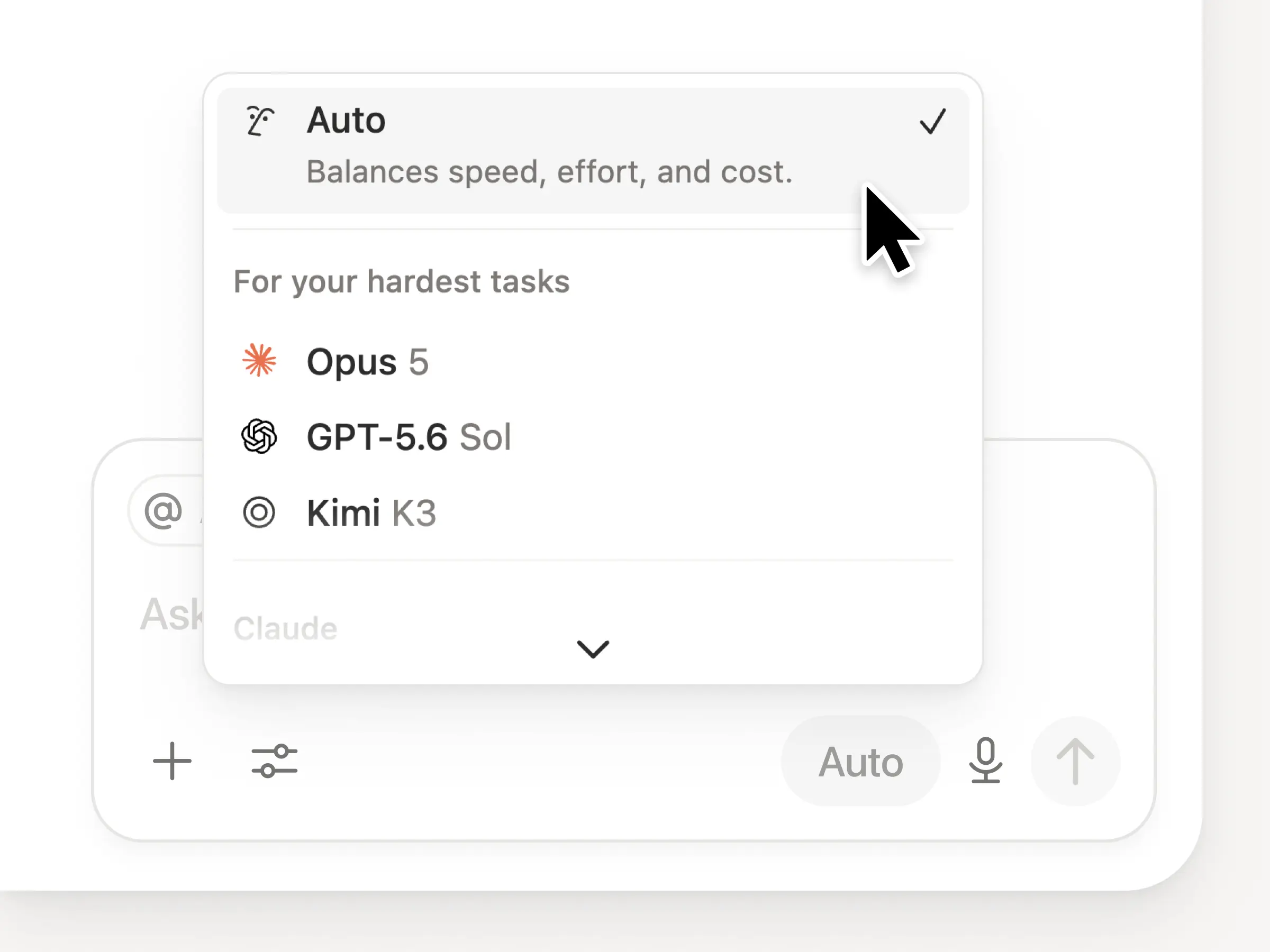
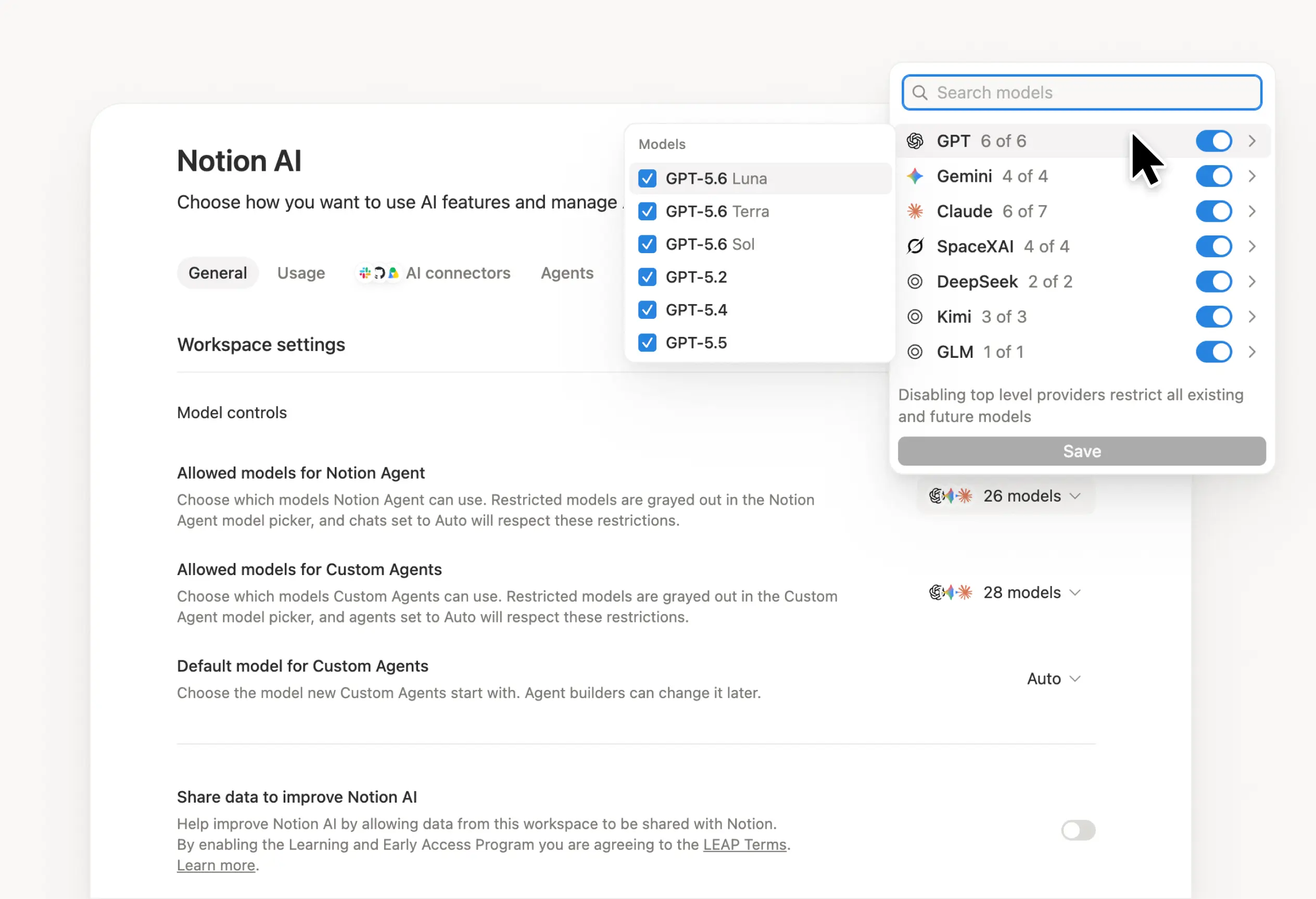
You get access to all the latest frontier models in Notion, including Opus 5, GPT-5.6 Sol, and Kimi K3. The new model picker is redesigned to help you choose the best model for your work, with indicators for speed, intelligence, and costs.
Also new is the Notion Knowledge Board, which evaluates model performance on real, everyday work. Compare models →
And a few more…
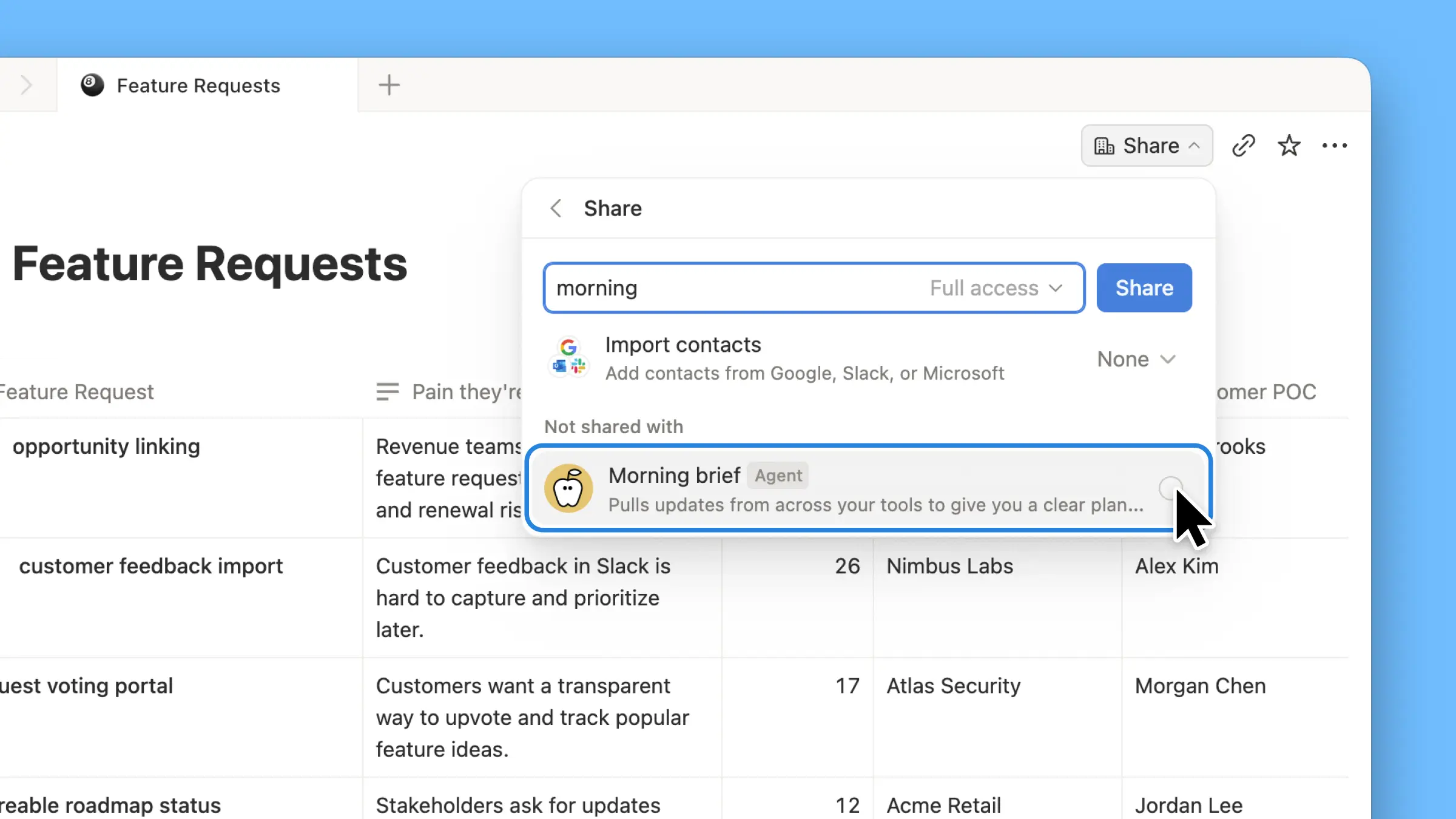
Embed a Custom Agent in any doc. Drop an agent right where the work happens, so anyone on the page can use it. See how →
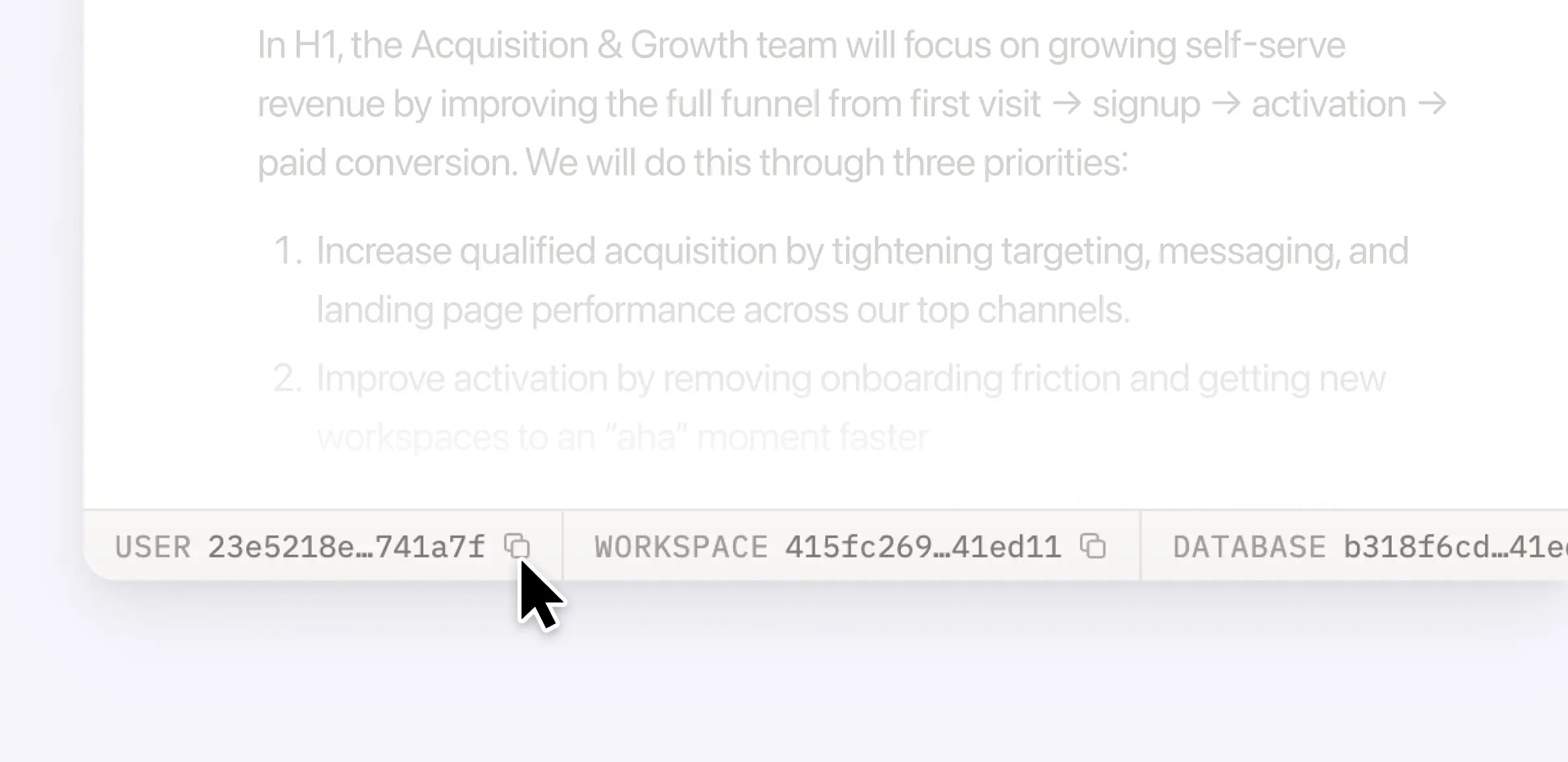
Custom Agent Insights in the Public API. Pull credit usage, completed runs, and status and enable, disable, or set limits for any agent. Business and Enterprise. Read the Insights API docs →
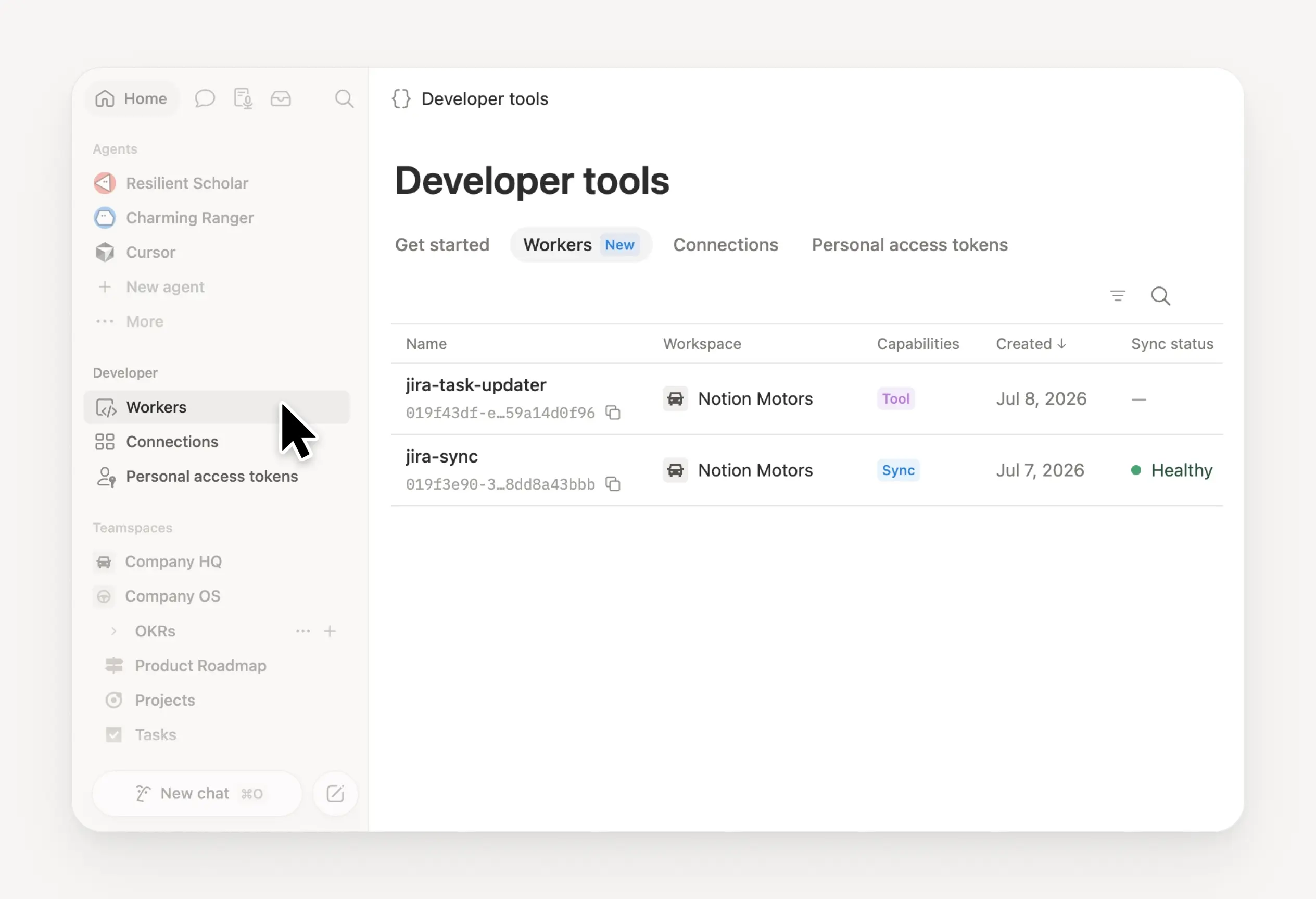
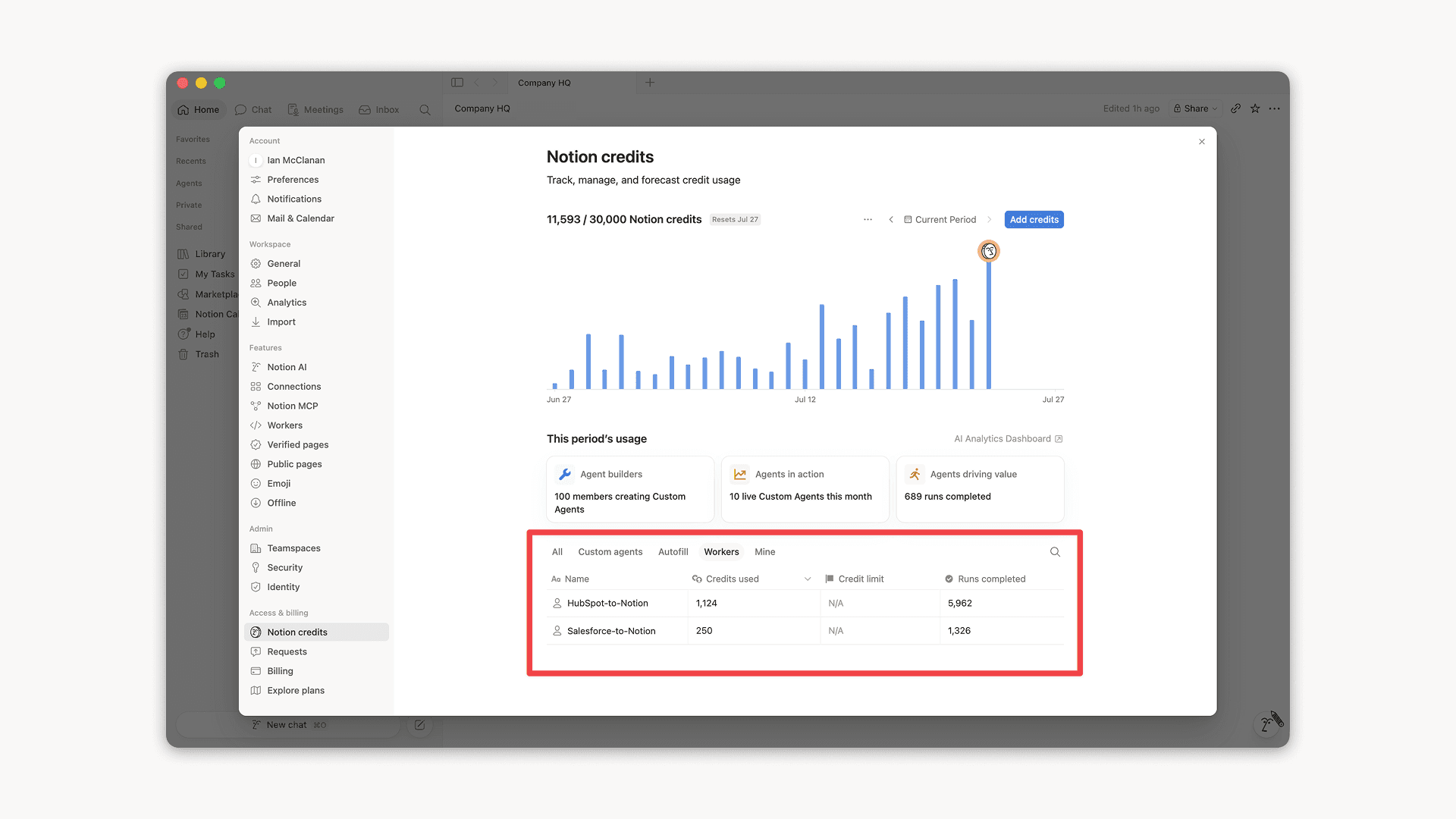
Manage your Workers and connections: Open the new Developer section in the sidebar to see every Worker, where it’s connected, and the logs from each run. Check it out →
Agent SDK, now in public beta. Continue Custom Agent conversations from anywhere, trigger them from your app, and stream results back. Business and Enterprise. Read the Agent SDK docs →
Developer Portal now lives in Notion. Manage your Workers, connections, and personal access tokens in one place. Open the portal →
AI Search is 50% faster. Less waiting on answers and agent outputs that use workspace context. Business and Enterprise. Give it a try →
Catch up on your inbox. Ask Notion Agent to group notifications, show what needs attention, and help clear the rest. Check it out →
Give skills a try! And share how we can make it better (we’ve got more cooking).